Exporting FMS Groups to CSV Files
The Export Groups task helps you export your FMS groups out to .csv files to facilitate making mass edits or adjustments to FMS group Nodes and their member entries. Once all changes have been made, the files can then be imported back into FMS. The first step of the process is to export your FMS group definition and/or entries files to .csv files, using this task.
You must have proper security authorization to export FMS groups. FMS ACCESS event authorization level 1 is required to complete this step. See FMS Security for more information about security event authorization.
Exporting FMS Groups
To Export FMS Groups to CSV Files
- Start CygNet FMS Toolbox, and then click Import to access associated tasks.
- Click Export Groups to access the Export FMS Groups pane.
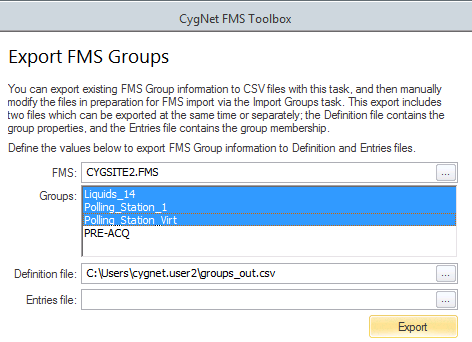
- Enter information into the following fields.
- FMS text box.
- To export groups from a Site.Service located on the same domain, type the name of the FMS Site.Service from which you wish to export groups, or click ... to access the Select Export FMS dialog box to browse to your selection and then click OK.
- To export groups from a Site.Service located on a different domain, type [XXXX], where XXXX is the name of the domain, followed by the name of the FMS Site.Service from which you wish to export groups.
- Groups text box. When you select your FMS service, this box will be populated with all eligible groups. Select the name(s) of the FMS group Node(s) you wish to export. You may select multiple groups by pressing Ctrl+Click or Shift+Click. Default selection is all groups.
- Definition file text box. Type the file name of the new group definition output .csv file to export, or click ... to access the Select Location to Save Group Definition dialog box to browse to an existing .csv file.
Note: If you select an existing .csv file, it will be overwritten by the .csv created.
- Entries file text box. Type the file name of the new group entries output .csv file to export, or click ... to access the Select Location to Save Group Membership dialog box to browse to an existing .csv file.
Note: If you select an existing .csv file, it will be overwritten by the .csv created.
- Click Export to generate the .csv file(s) to the specified location(s).
Preparing FMS Group CSV Files for Import
Once your group definition and/or group entries .csv files have been created, the next step of the process is to edit the files to prepare them for the subsequent step, where you will import the files back into FMS.
See Configuring and Editing Group CSV Files for more information.


